

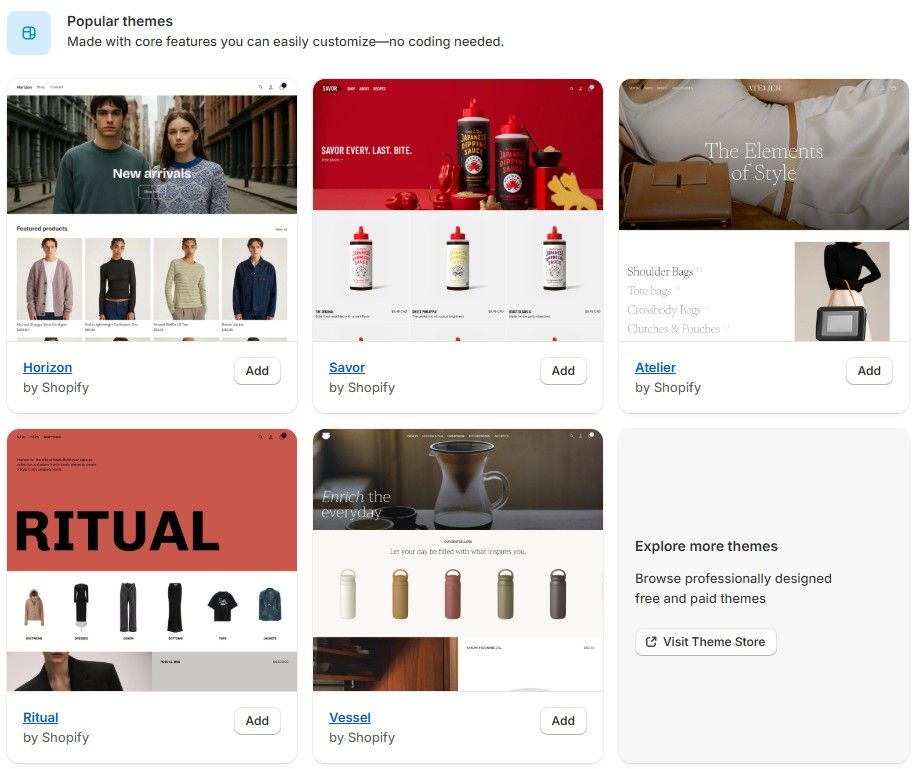
Customising your Shopify theme (without nuking conversion)
Your theme is not just “the look.” It’s how the store earns trust. Shopify’s theme editor lets you preview your storefront, change settings, and add / remove / rearrange sections — all from Online Store → Themes → Customize. You can edit templates for different pages (home, product, collection, cart, etc.) without touching code, which means you can improve clarity without waiting on a dev sprint.
Inside the editor, you can adjust typography, layout, cart style (drawer vs full page vs popup), currency formatting, and more under Theme settings. You can also rearrange sections to elevate what actually drives action: proof (reviews, guarantees), offer (bundles, best sellers), and clarity (shipping timeframes, returns). We always push “what problem do you solve and why should I trust you?” above the fold.
One important callout: don’t drown the PDP. Product pages should make it easy to buy, not force users to scroll through five carousels and two brand stories before they find “Add to cart.” Less ego, more clarity. If you need heavy storytelling, use a secondary block (“Why choose us”) or a supporting landing page.
If you’re on a paid third-party theme, keep in mind theme devs typically won’t customise for you — Shopify’s own guidance is to hire a Shopify Partner if you need deeper modifications. That’s where we come in. We build layouts that sell, not just layouts that look pretty in a moodboard.
Want us to review your theme structure and show you which sections are costing you conversions? Say hello and we’ll map improvements in plain English.


Comments (4)